The mouse can be used for clicking, selecting, dragging and dropping. In this article, find out how to effectively use the mouse in AbsoluteTelnet/SSH
Selecting
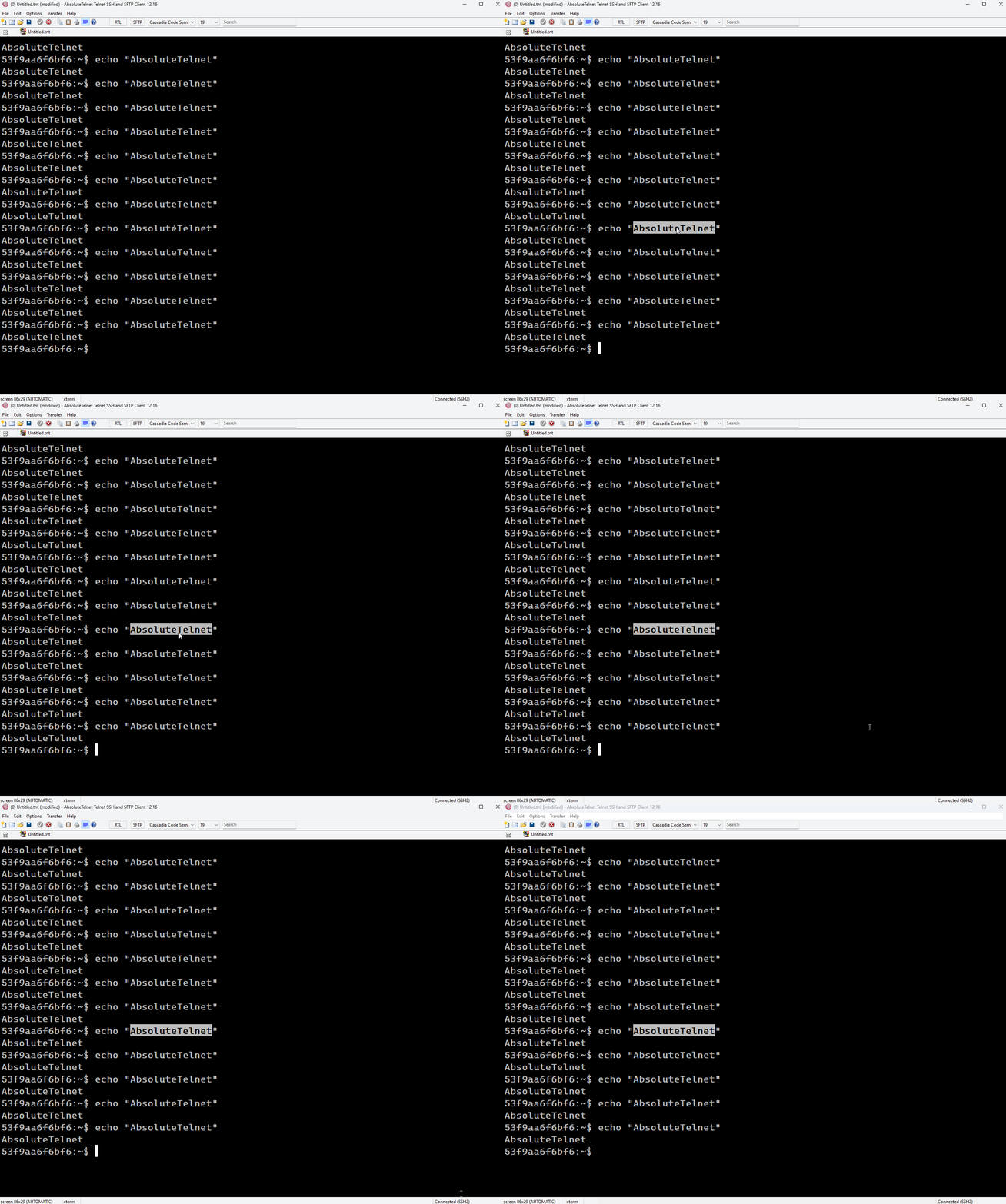
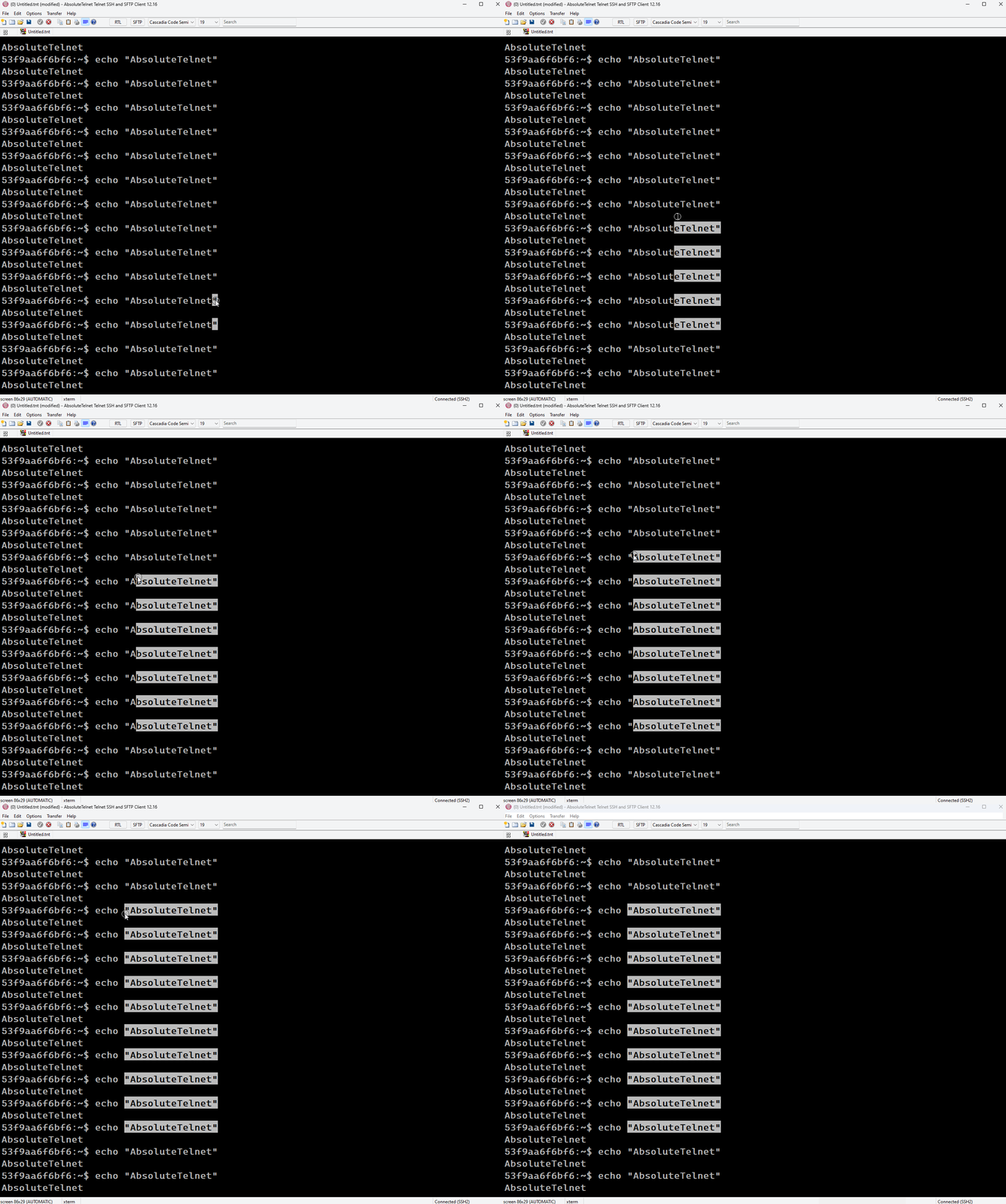
- Double clicking selects an entire word.
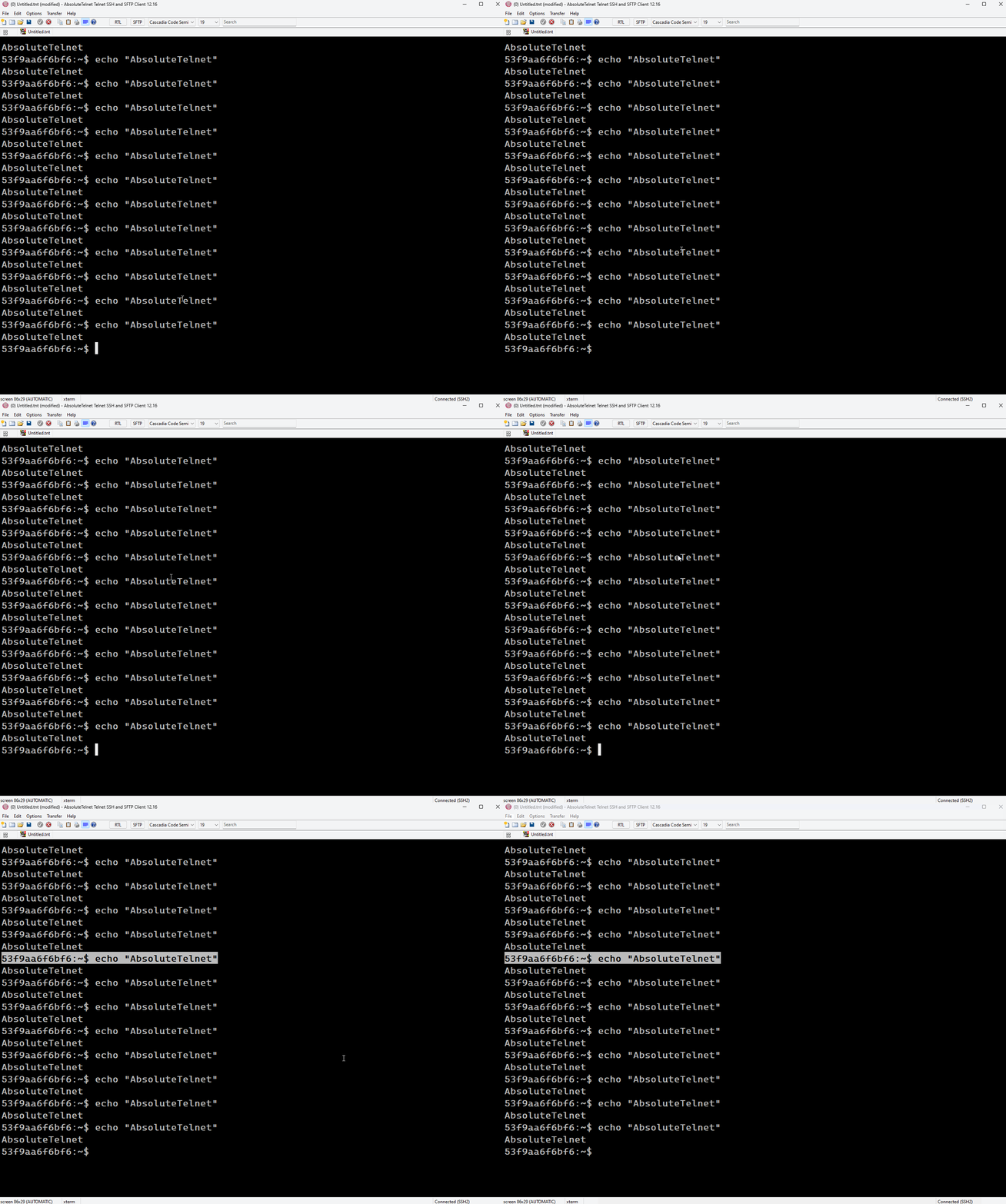
- Triple-clicking selects an entire line.
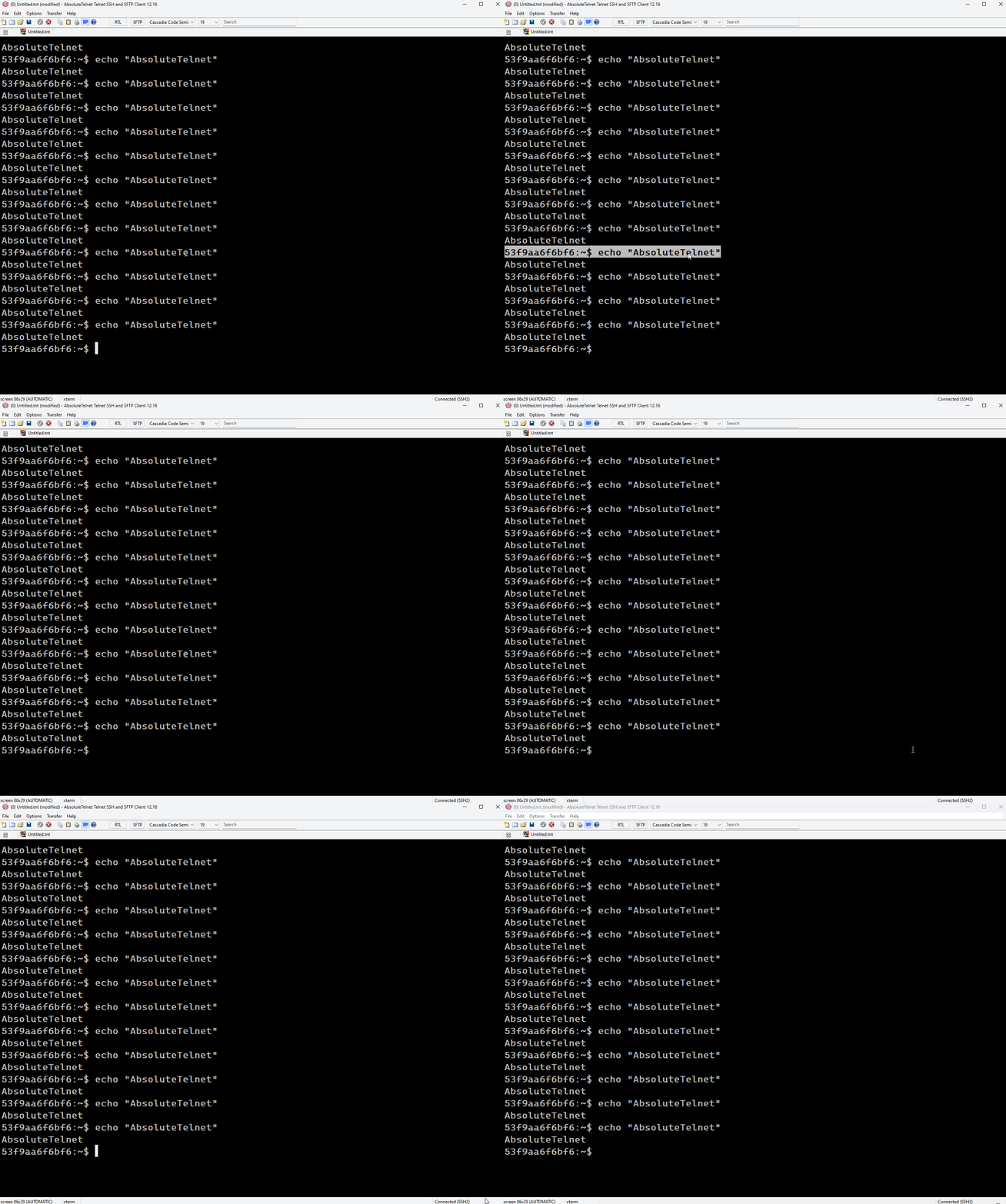
- Quad-clicking selects an entire screen.
- To select a portion of the screen to print or copy, hold down the primary mouse button in the AbsoluteTelnet window and drag the mouse.
- If you drag the mouse of the window, the screen will start to scroll.
- The farther you drag the mouse off the screen, the faster the screen will scroll.
- To continue the selection, hold down the Ctrl key and continue dragging.
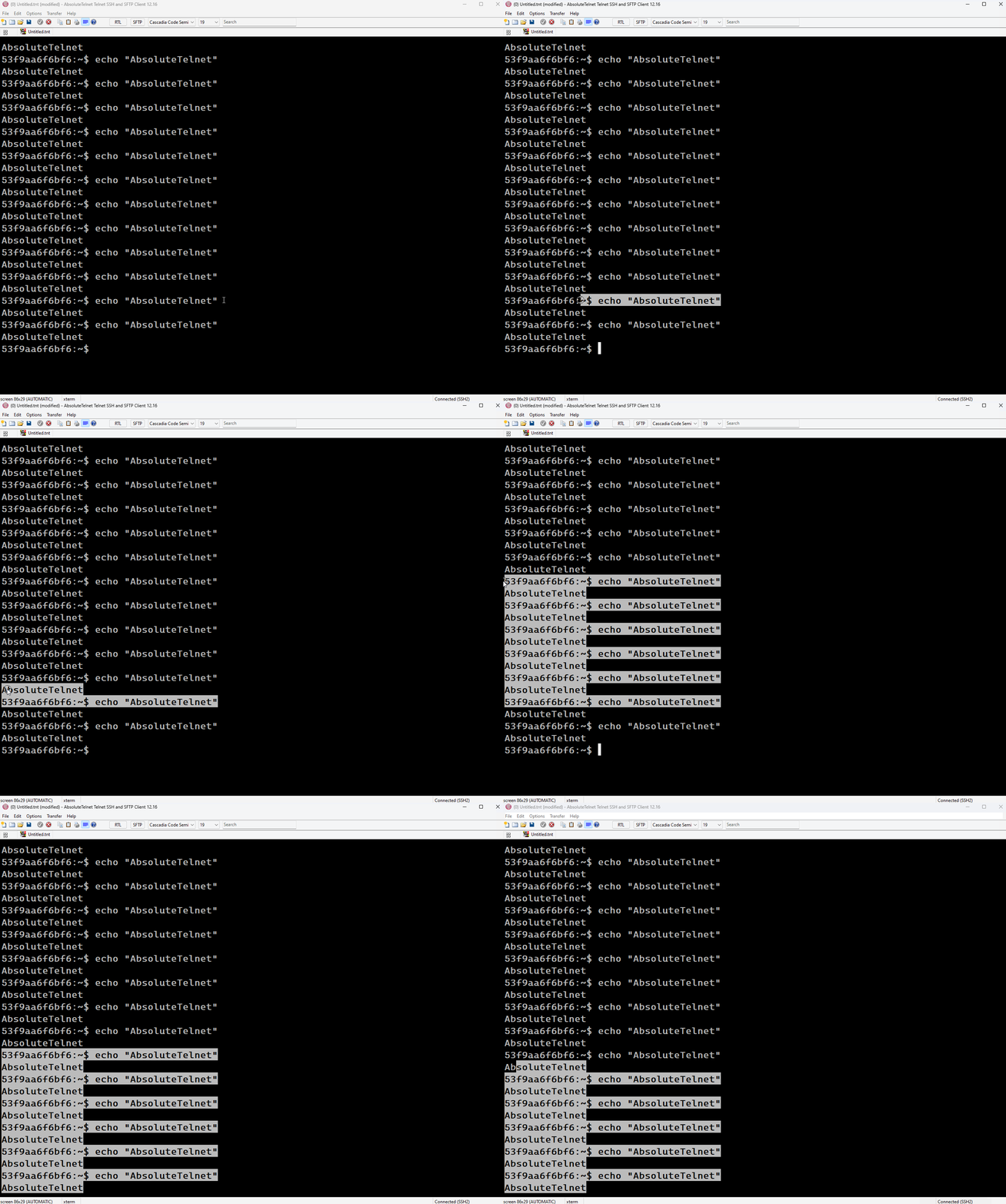
Rectangular selections can be made by holding down the ALT key prior to making a selection
Printing
To print the current selection, choose the File/Print command or press the print button on the toolbar. AbsoluteTelnet – Printing
Copying
To copy the current selection, choose the Edit/Copy command of press the copy button on the toolbar. Copying can also be done by pressing the Ctrl-Ins keyboard combination.
Pingback: AbsoluteTelnet – Context Menu – Celestial Software